Create an Invoice Register report to view a list of all Invoices entered in a specific Financial Period. Customize the report by selecting dates, vendors or specific Sites.
| Access |
| Grant permission to User Profiles in Access User Profiles > select a User Profile > Security > Accounts Payable > Menu Security > Reports > Invoice Register. |
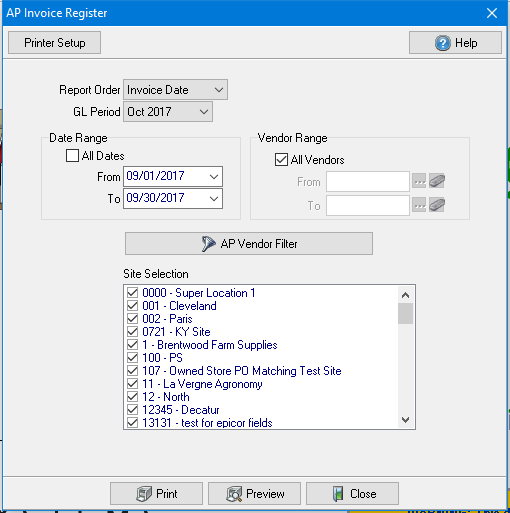
Create Your Report
Select a Report Order of
- Invoice Date
- Vendor ID
Use the drop down list to select the GL Period for the report.
All Dates are selected by default in the Date Range field. Remove the checkmark and create a date range by selecting a date from the drop down calendar for both the From and To fields.
All Vendors selected by default in the Vendor Range field. Remove the checkmark to create a range of Vendor IDs by entering a Vendor ID in both the From and To field. Focus on one Vendor by selecting the same Vendor ID in both fields. If Vendor IDs are unknown, select  to search.
Learn about applying a  here.
here.
Select the Sites required for the report in the Site Selection field.
Select Preview to view the report onscreen.
Select Print to send the report directly to the default printer.
View a sample report here.